Windows PowerShell Trace Command

On this page I will describe how to employ PowerShell's built-in cmdlet to debug problems. Trace-Command cmdlet initiates a record of how PowerShell attempts to execute the specified expression.
PowerShell Trace-Command Topics
- Investigate Components to Trace
- Example 1: Trace-Command Filesystem
- Sample Output of Trace-Command
- Example 2: Trace-Command Processes
♣
Preparation: Choose an Expression to Trace
I like to start at the beginning with a simple PowerShell command, and then build on success.
Clear-Host
Get-ChildItem C:\
Note 1: This is just the expression that we wish to investigate with a trace.
Timeout: Investigate Components to Trace
Key Question: What specifically do we want to troubleshoot? FileSystem, PathResolution? Let us seek the answer by using another trace cmdlet.
Clear-Host
Get-TraceSource | Format-Table Name, Description -AutoSize
This was how I discovered PathResolution and other debug components.
Example 1: Trace-Command Filsystem
We have chosen our expression {GCI}, and we have researched the name of a component to trace (PathResolution).
Clear-Host
Trace-Command -Name PathResolution -Expression {GCI C:\} -PSHost
Note 2: Nothing gets displayed unless you append the -PSHost parameter.
Note 3: Talking of parameters, PathResolution itself is not a parameter, this is why for clarity I explicitly wrote -Name with its value of PathResolution.
Note 4: GCI is a common alias for Get-ChildItem.
Sample Output of Trace-Command
DEBUG: PathResolution Information: 0 : Path is DRIVE-QUALIFIED
DEBUG: PathResolution Information: 0 : DRIVE-RELATIVE path: \
DEBUG: PathResolution Information: 0 : Drive: C
DEBUG: PathResolution Information: 0 : Provider: Microsoft.PowerShell.Core\FileSystem
DEBUG: PathResolution Information: 0 : Resolving MSH path "C:\" to PROVIDER-INTERNAL path
DEBUG: PathResolution Information: 0 : Filter:
DEBUG: PathResolution Information: 0 : Include:
DEBUG: PathResolution Information: 0 : Exclude:
DEBUG: PathResolution Information: 0 : Path is DRIVE-QUALIFIED …..
Directory: C:\
Mode LastWriteTime Length Name
—- ————– —— —-
d-r– 28/01/2014 19:10 Program Files
d-r– 27/01/2014 10:29 Program Files (x86) ….
Note 4: There were no problems with this particular trace, to mimic an error to troubleshoot you could choose a non-exist path such as GCI V:
Guy Recommends: A Free Trial of the Network Performance Monitor (NPM) v11.5
v11.5
SolarWinds’ Network Performance Monitor will help you discover what’s happening on your network. This utility will also guide you through troubleshooting; the dashboard will indicate whether the root cause is a broken link, faulty equipment or resource overload.
What I like best is the way NPM suggests solutions to network problems. Its also has the ability to monitor the health of individual VMware virtual machines. If you are interested in troubleshooting, and creating network maps, then I recommend that you try NPM now.
Download a free trial of Solarwinds’ Network Performance Monitor
Research Parameters for Trace-Command
This is how I discovered -PSHost and other useful parameters for this debugging cmdlet.
Clear-Host
Get-Help Get-TraceSource -Full
Note 5: The Help file reveals ParameterBinding
Example 2a: Trace-Command Processes
I created an array called $Names=@(, which contains interesting tracing elements. For a working script I would just focus on the names of interest
Clear-Host
$Names=@("ParameterBinding","CommandDiscovery","TypeConversion")
Trace-Command -Name $Names {Get-Process a* -ComputerName LocalHost} -PSHost
Note 6: The expression is Get-Process.
Example 2b: Trace-Command Processes
For comprehensive debugging, I created an array $Names=@( containing all the possible tracing elements as revealed by Get-TraceSource.
Clear-Host
$Names=@("CertificateProvider", "ClientTransport", "CmdletProviderClasses", `
"CmdletProviderContext", "CommandDiscovery", "CommandHelpProvider", `
"CommandSearch", "ConsoleLineOutput", "CRPS", "CRSessionFSM", "CRSessionImpl", `
"DisplayDataQuery", "ETS", "FileSystemProvider", "FormatFileLoading", `
"FormatInfoDataClassFactory", "FormatViewBinding", "GetHelpCommand", `
"InternalDeserializer", "LocationGlobber", "MemberResolution", "Modules", `
"MshSnapinLoadUnload", "NavigationCommands", "ParameterBinderBase",`
"ParameterBinderController", "ParameterBinding", "PathResolution", `
"PowerShellISENamedPipe", "PSDriveInfo", "PSSnapInLoadUnload", `
"RegistryProvider", "RunspaceInit", "SerializedDataStream", "SessionState",`
"SessionStateProvider", "Transport", "TypeConversion", "TypeMatch")
Trace-Command -Name $Names {Get-Process a* -ComputerName LocalHost} -PSHost
Guy Recommends: SolarWinds’ Log & Event Management Tool
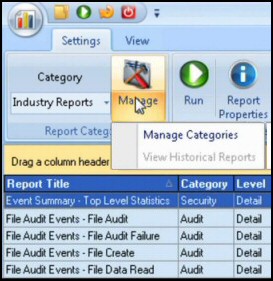
LEM will alert you to problems such as when a key application on a particular server is unavailable. It can also detect when services have stopped, or if there is a network latency problem. Perhaps this log and event management tool’s most interesting ability is to take corrective action, for example by restarting services, or isolating the source of a maleware attack.
Yet perhaps the killer reason why people use LEM is for its compliance capability, with a little help from you, it will ensure that your organization complies with industry standards such as CISP or FERPA. LEM is a really smart application that can make correlations between data in different logs, then use its built-in logic to take corrective action, to restart services, or thwart potential security breaches – give LEM a whirl.
Download your FREE trial of SolarWinds Log & Event Management tool.
Discover Other Members of PowerShell's 'Trace' Family
Let us research other cmdlets which deal with tracing or debugging.
Clear-Host
Get-Command *trace*
Name
—-
Enable-PSTrace
Enable-PSWSManCombinedTrace
Enable-WSManTrace
Start-Trace
Stop-Trace
Get-TraceSource
Set-TraceSource
Trace-Command
See more tasks for PowerShell »
Summary of PowerShell's Trace-Command
Trace-Command cmdlet automatically configures a detailed record of the specified PowerShell expression or command.
If you like this page then please share it with your friends
See more Microsoft PowerShell tutorials
• PowerShell Home • Real life tasks • Invoke-Command • PowerShell Windows 7
• Remote PowerShell • PowerShell WSMan • -Online • PowerShell WinRm • Test-Connection
• Jobs -AsJob • Receive-Job • Get-Job • Receive-Job • Free WMI Monitor
Please email me if you have a better example script. Also please report any factual mistakes, grammatical errors or broken links, I will be happy to correct the fault.